
You might call it a log book, logs, shift notes, or a journal. Whatever you call it, it’s where operators capture each day what they observed, what they adjusted, and what the next shift should keep an eye on. A good log book helps preserve context, supports smoother handoffs, and keeps small issues from turning into bigger ones.
Anyone who’s worked in a plant has made an entry in a logbook. You know the one: a spiral notebook with pages curled and folded, notes written in a hurry, and a few sticky reminders stuck to the monitor “just for now.” Somewhere in the margins is the answer to when something was adjusted, who noticed it, and why. That's assuming the page didn’t get skipped, the handwriting is readable, and the sticky note didn’t fall off. Paper logs get the job done, but they have a way of turning important details into a scavenger hunt.
Waterly rounds now includes a digital log book. The Log Book builds on this long-standing practice by bringing operational notes into a shared, digital space. Entries are clear and legible, tied to the person who recorded them, and available to the entire team in one place. With the ability to pin important notes, attach photos, add tags, and upload supporting documents, Log Book turns individual observations into a historian for operational knowledge—helping teams communicate more clearly, reduce missed details during shift changes, and work more confidently together.
How Log Book Works like Paper
Fundamentally, the Log Book behaves the same way as your paper log. For example:
- Entries stay with the site where they’re created—just like leaving the plant notebook at the desk when your shift is over. Notes entered at the treatment plant remain with that plant, and entries for a booster or lift station stay tied to that specific site.
- Entries are added in order and roll forward over time—and they’re not required every day. A site might only have one entry in a week, but like notes in a notebook, each entry is recorded one after another rather than being forced into a separate “page” for each day.
Taking the Log Book Beyond the Desk
- Entries are always legible and easy to review. Most devices support speech‑to‑text, and every note is automatically stamped with who entered it and when—so follow-up, audits, and shift-to-shift collaboration are much simpler.
- You can pin critical site notes—like “Confirm wells are shut off before backwash starts”—so they stay at the top of the log and visible to every operator who needs to see them.
- When a picture explains things faster than a paragraph, you can attach it directly to the log. Snap a photo on your phone or upload one from your device so the next person can see exactly what you saw in the field.
- Tagging an entry with a category helps keep notes focused and will enable filtering in the future so you can quickly find similar entries.
- Because the Log Book lives in Rounds, your team has a single, centralized place for site notes that’s accessible from anywhere you use Waterly—helping keep everyone aligned without chasing down the plant notebook.
- Improve team communication with a centrally located log book that’s accessible from anywhere you use Rounds.
Log Book is designed to feel familiar while making everyday notes easier to manage and share. It fits naturally into daily plant operations and reflects how operators already document observations, adjustments, and follow-ups.
Using Log Book in Rounds
At its core, Log Book works much like a traditional paper log—entries are added as things happen, stay tied to the site where they’re recorded, and build a running history over time. This section walks through how to create entries, pin important notes, and use Log Book as part of your normal workflow.
The log book is accessed through the spiral notebook icon at the top of the site.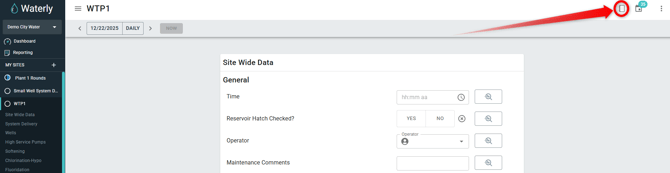
Clicking the log book icon opens a new panel. It will look like the example below. Let's look at a few features: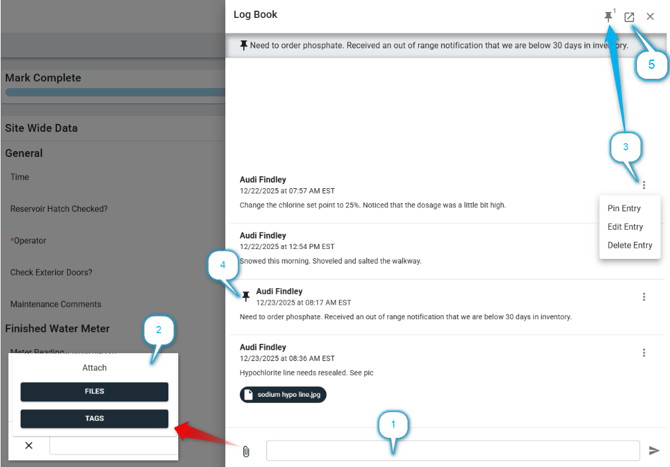
- This is the text entry box. Simply enter text here and click the send icon.

- To attach a picture or document, click the paperclip.
- Click the files to upload pictures or documents. On mobile, this will give you the option to choose from your photo gallery or take a picture.
- Click tags to select from a list of categories such as: Operations, Maintenance, Compliance, Safety. These allow the entry to have a focus and will eventually be filterable.
- The three dots access the menu for each entry.
- Pin Entry - Supervisors have the capability to pin important comments.
- Edit Entry - The author of the entry can edit his/her text in the entry. Note: Files cannot be edited once tagged. To edit the files, delete the entry and reattach the correct files.
- Delete Entry - The author of the entry can delete their entry.
- Pinned comments are indicated by the push pin icon
 . This is displayed next to the pinned entry. This also pins it at the top of the logbook and will display there until unpinned.
- Multiple comments can be pinned. In this case, the newest comment will be displayed at the top of the log book.
- The pin icon in the top right corner will indicate how many pinned comments are in the Logbook. Clicking that icon will pop open a box displaying the pinned comments from newest to oldest for easy reference.
- Quick Link to the Log Book Dashboard (see next heading)
Logbook Dashboard
As systems grow, it’s normal to have more than one log book. Each site—whether it’s a treatment plant, booster station, or lift station—keeps its own log so notes stay specific to the work happening there. That structure works well day to day and mirrors how most operators already think about their facilities.
The Log Book Dashboard is there for the moments when you want to zoom out. It gives you a single place to see entries from all of your site log books at once, or to narrow things down to just the sites you care about right now. Instead of bouncing between facilities, you can scan notes, spot follow-ups, and keep tabs on what’s happening across the system. And because it’s always one click away from any log book, it’s easy to use when you need the bigger picture.
There are two simple ways to navigate to the Log Book Dashboard:
-
Clicking the Waterly logo in the upper-left hand corner of the browser and selecting Log Book Dashboard.
- Click on the quick link icon
 from any log book.
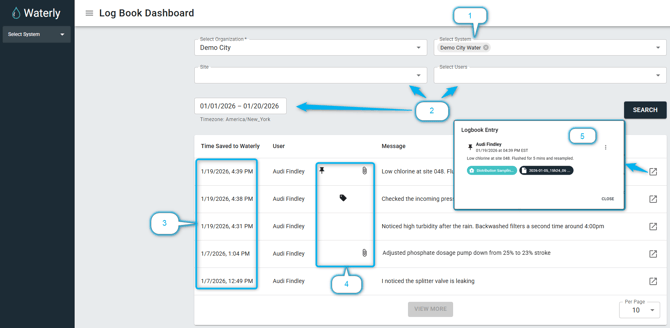
-
The organization will automatically be assigned based on the user. If the user is assigned to multiple systems, they can be filtered here. This is a required field.
- These other fields can be used to further filter the results.
- These entries were made on different days and at different sites across a system.
- The icons indicate if the entry includes additional information in the form of a tag, file upload, or if it is pinned on it's originating site.
- By clicking the icon, a popup box will display additional details regarding tags, file access, and more.
Conclusion
Log Book is here to make everyday work a little easier. By giving operators a simple, shared place to log what they notice and do, it helps teams stay connected across shifts and keep important details from slipping through the cracks. It’s included with your Waterly subscription at no additional cost because it’s part of our ongoing effort to listen, learn, and build tools that genuinely support the way utilities operate. As always, we’re here to help if you have questions.